
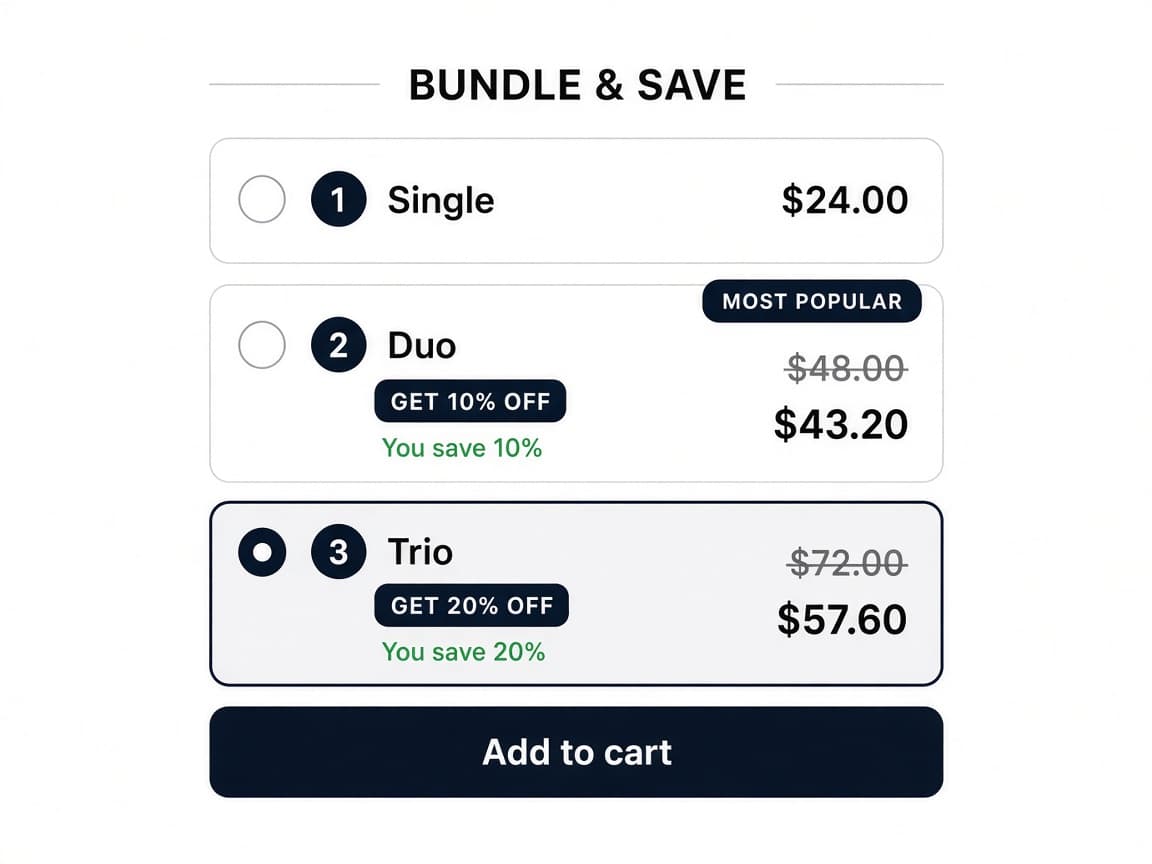
Tiers sit on the product page
The default heading is BUNDLE & SAVE. Each card is a quantity of that same product, with a quantity badge, a price, a discount pill, and an optional Most Popular tag.
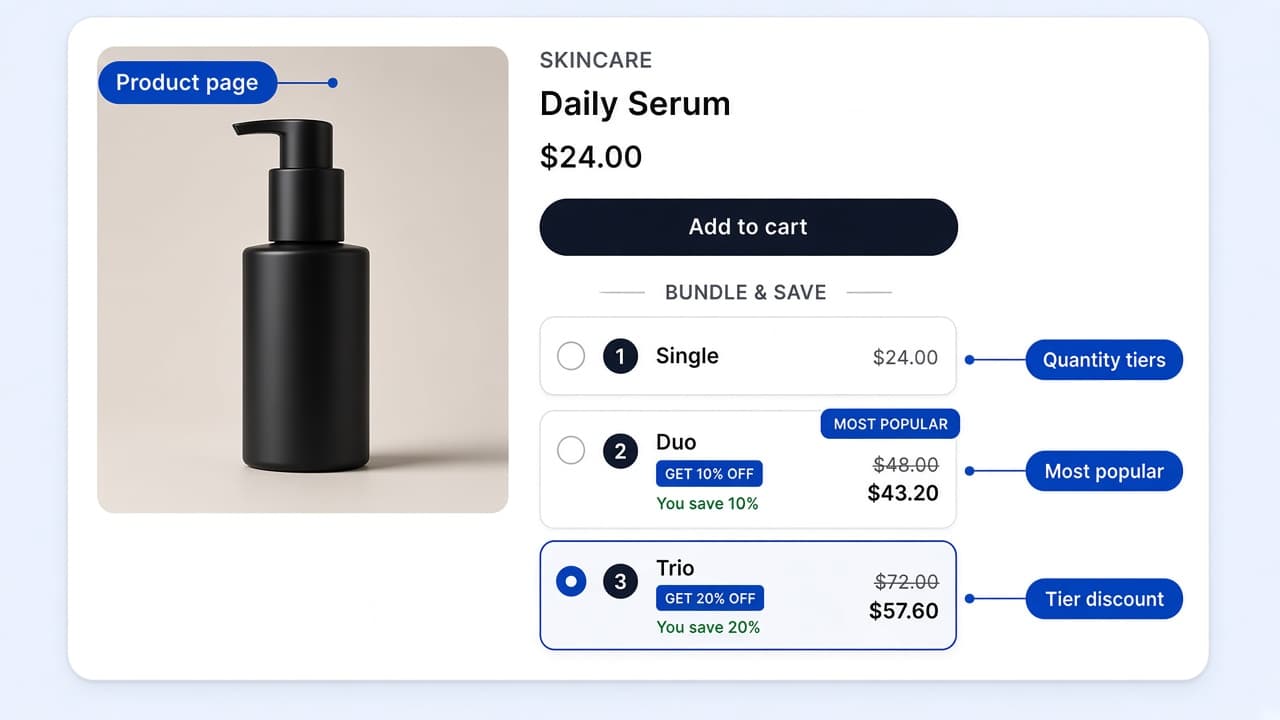
Product page
The default heading is BUNDLE & SAVE. Each card is a quantity of that same product, with a quantity badge, a price, a discount pill, and an optional Most Popular tag.
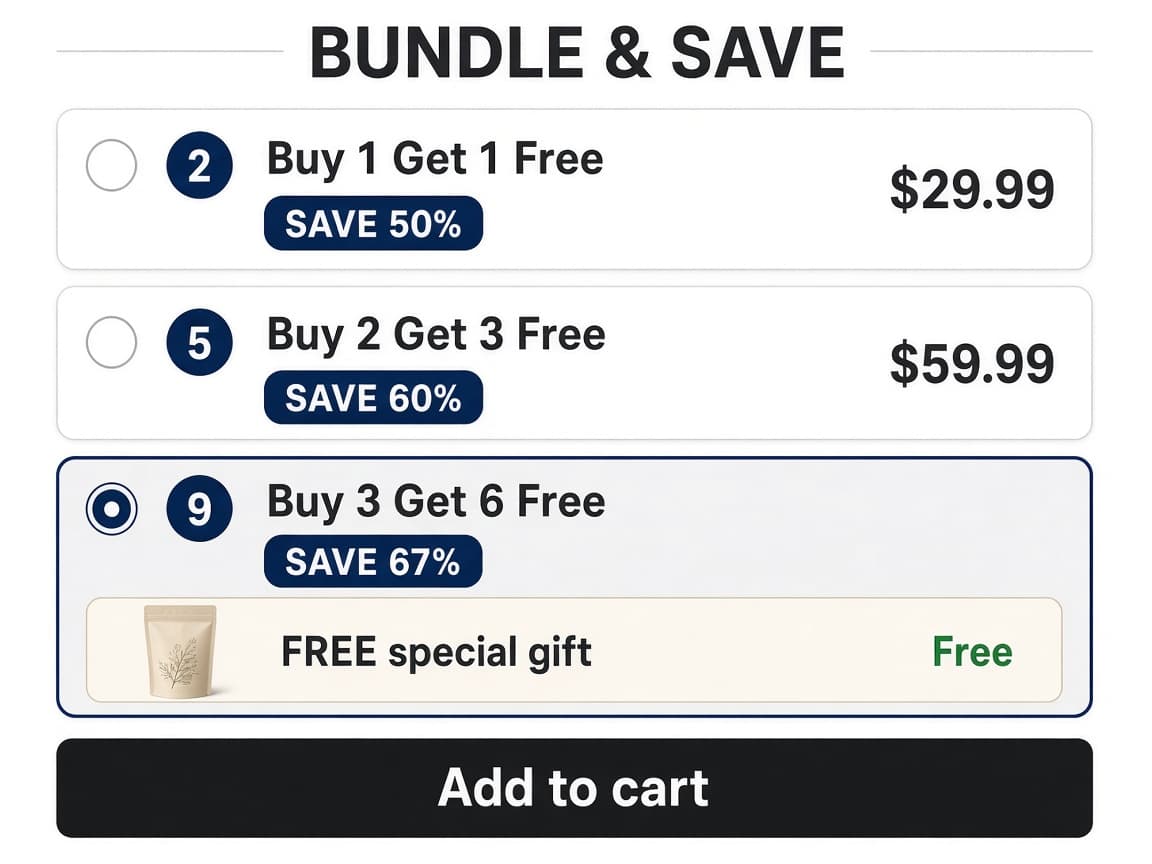
The BOGO template puts a free gift inside the selected tier. That bar uses your gift title and a zero-price label. The template default is FREE special gift, labeled Free.
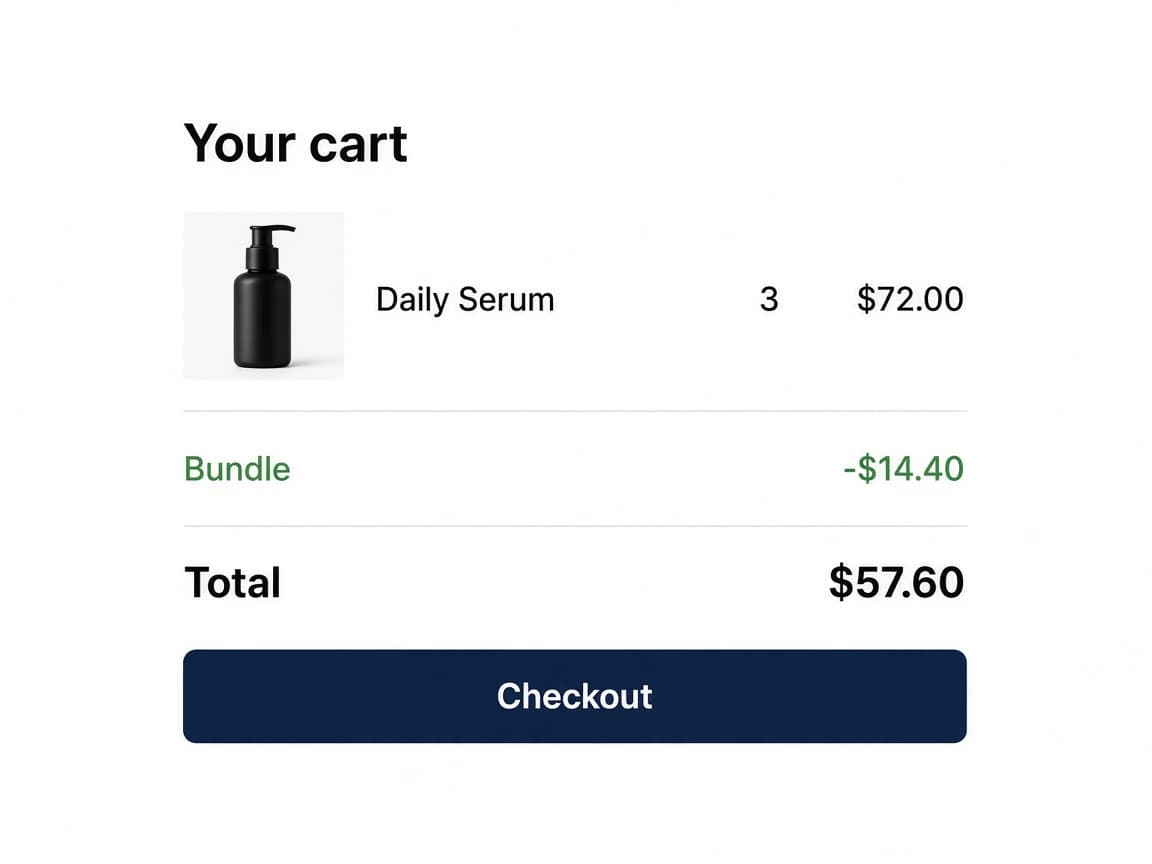
The chosen quantity goes into the cart. The Shopify Function writes a discount line named Bundle, so the customer does not enter a code.
Templates, per-tier discounts, gifts, and placement — the controls that are actually in the editor.
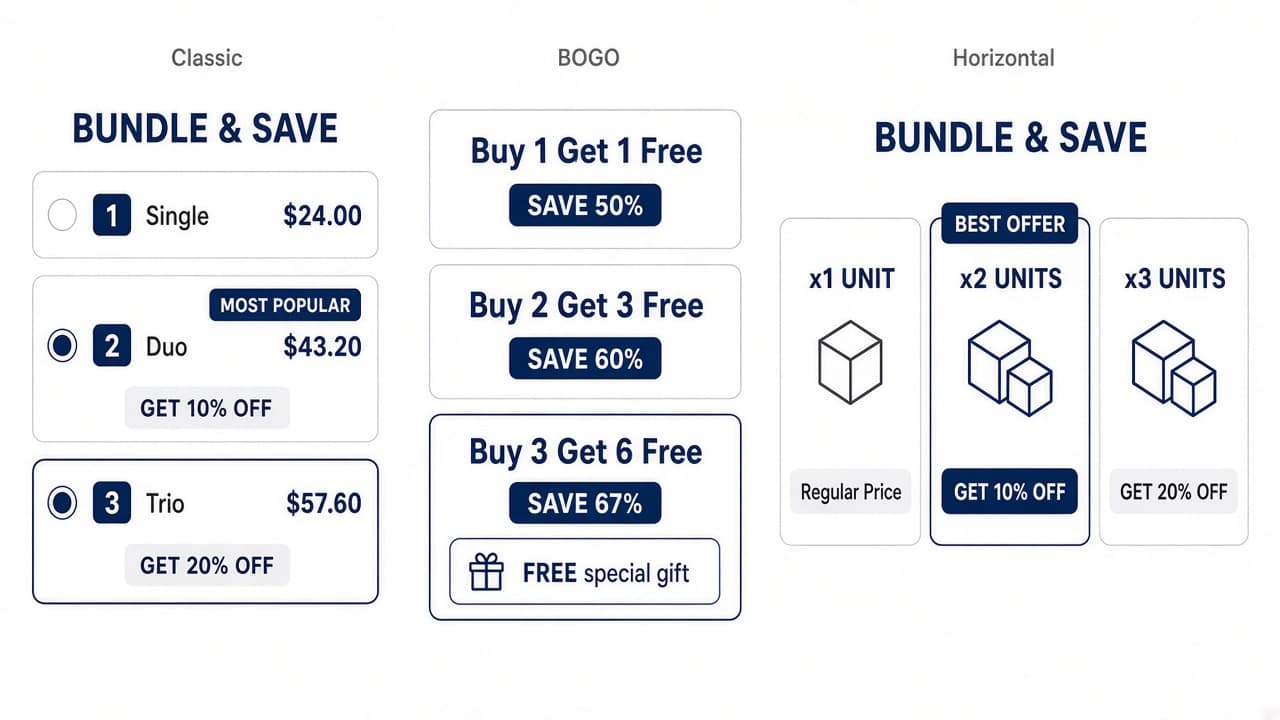
Create quantity bundle opens a template picker. Classic is Single, Duo, and Trio. The others are a minimal Buy 1 / 2 / 3 layout, BOGO volume deals, tiers with an add-on upsell, a per-item variant picker, tiers with custom images, and horizontal cards with an unlock section.
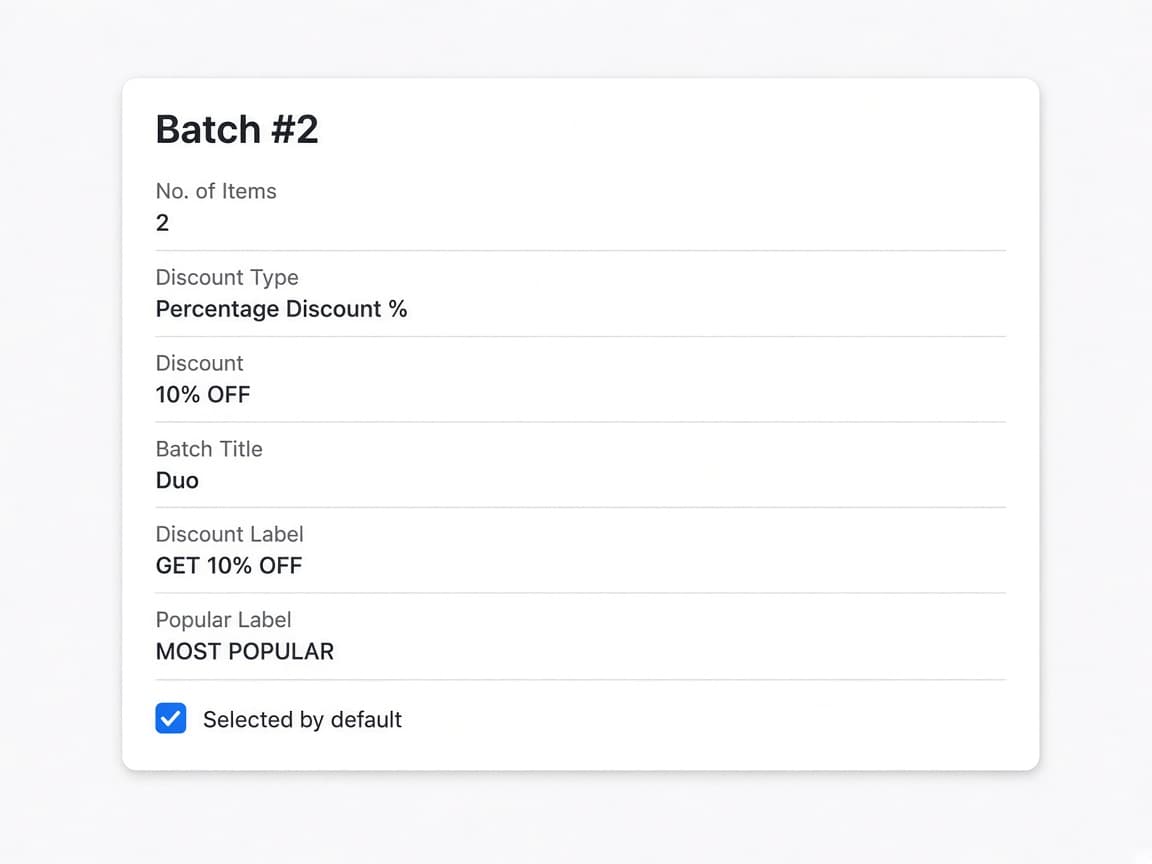
A batch is one tier. Set the number of items, then None, a percentage, or a fixed amount. Title, subtitle, discount label, and popular label are what the customer reads. One batch can be selected when the page loads. A batch can also carry a free gift or an upsell, shown inside the selected tier or in a section below all of them.
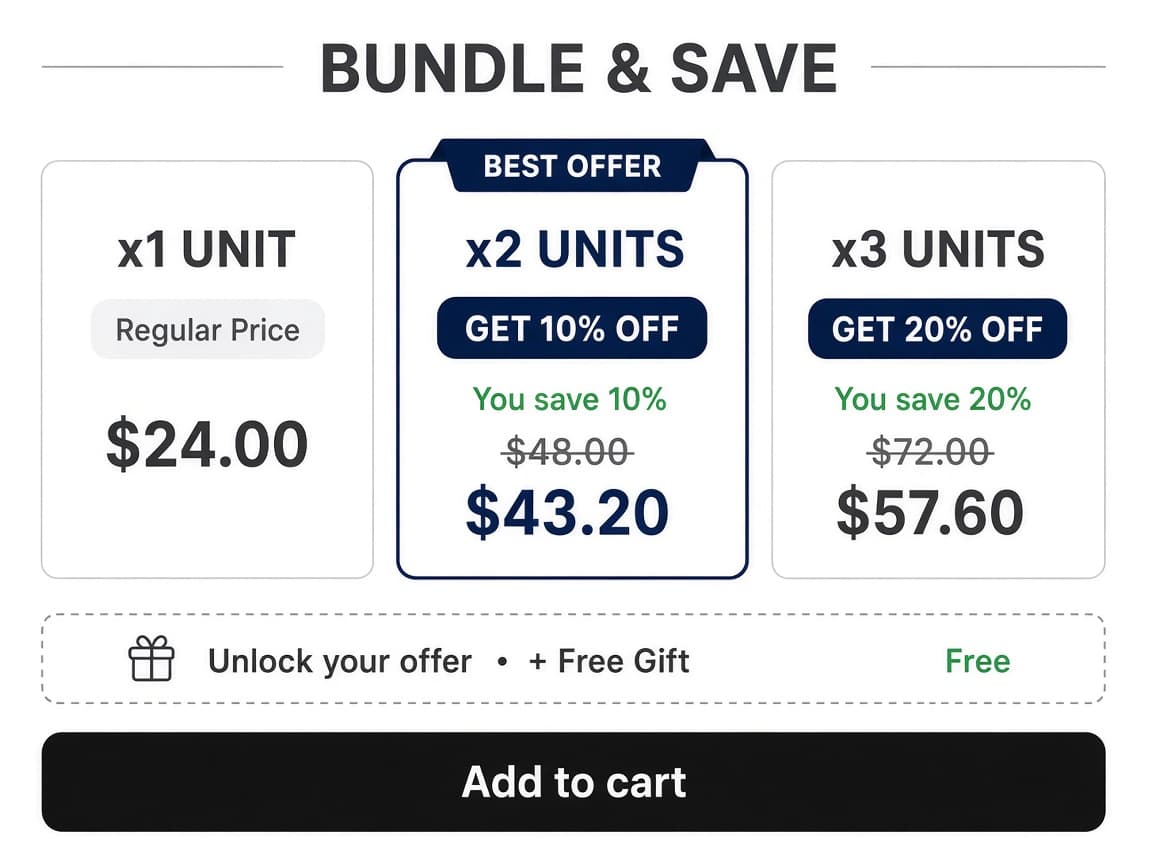
The horizontal template does not use radio buttons. x1 UNIT, x2 UNITS, and x3 UNITS sit side by side, and BEST OFFER sits on the top edge of a card. A gift or upsell goes in the unlock section below the cards. You still place the whole widget below add to cart, in the RevenueLift QB block, or on an HTML id.
Frequently Bought Together pairs the product on the page with other products and adds them with one Claim Offer button. Quantity Bundle sells more units of the product the customer is already viewing. Gifts and upsells are optional extras on a tier, not the main offer.
Quantity Bundle has its own item in the app nav. Choose Create quantity bundle, pick a template, then work through Settings, Batches, Trigger, Design, and Placement. It is not in the Create upsell gallery.
The Trigger tab uses the same choices as other product-page offers: all products, specific products, or specific collections. The tiers are quantities of whichever product the customer is viewing.
You choose. Default Shopify Add to Cart Button keeps the theme button. Bundle Add to Cart Button adds a button on the widget, and you set its label. The default bundle label is Add to cart.
Yes. On a batch, set Special offer to Add Gift With Tier, pick the product, quantity, and variant, and set the gift title. The default title is + Free Gift and the zero-price label is Free. The discount function applies 100% off that gift.
On vertical layouts, turn on the variant picker. You can also show the variant image and a quantity picker. Duo then shows two rows and Trio shows three. The horizontal template does not show radio buttons.
No. There is no subscription tab and no per-language translations on this offer. Selling plans and translations stay on Frequently Bought Together, Product Add-Ons, and Cart Upsell.
Analytics has a Bundles tab with views, clicks, conversions, conversion rate, and revenue for each quantity bundle, separate from the Upsells tab.
Pick a template, set the tiers, and publish it on the product page.